> For the complete documentation index, see [llms.txt](https://docs.creditcoin.org/llms.txt). Markdown versions of documentation pages are available by appending `.md` to page URLs; this page is available as [Markdown](https://docs.creditcoin.org/wallets/ledger-hardware-wallet/subwallet.md).
# SubWallet
After successfully completing the prerequisite setup phase, you can start using the SubWallet through Ledger
### How to connect Subwallet to Ledger
**Open SubWallet → Add account**
1. Click **All accounts** on top
2. Click **Attach Account** and then **Connect a Ledger device**
3. In a new tab, select **Connect Ledger device**
4. **On Ledger:** ensure the device is **unlocked** and open the **Polkadot app.**
* Choose the **account(s)** (Account type / Address index) → **Continue** → **Name** → **Add**.
* You should see: Account connected.
> If the Chrome device chooser doesn’t appear: ensure pop-ups allowed, click the tiny USB icon in the address bar to grant access, or reset site permissions for the page.
5. SubWallet – Add Creditcoin (Substrate) to wallet
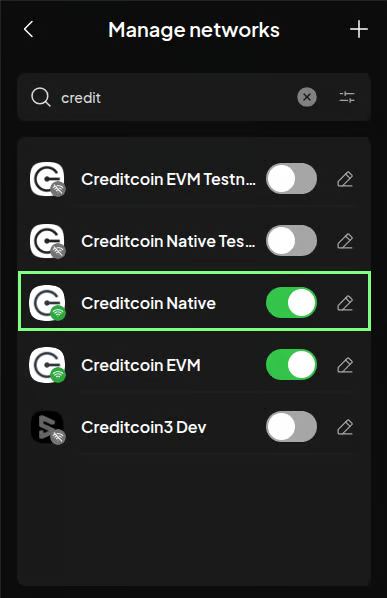
* Click on the sliders button in the **Subwallet** extension in the top left **→ Manage networks**
* Search for **Creditcoin Native** and toggle it
### How to send funds via
1. **Unlock Ledger** → open the **Polkadot app**
2. In **SubWallet**, select your **Ledger account** → **Click on your desired Creditcoin account**
3. Pick **Network/Asset** (e.g., **CTC** native token on Creditcoin).
4. **Recipient**: paste/select → **Amount**: enter value, and **Transfer**.
5. **Next** → **Sign with Ledger** → confirm on device → **Approve**
6. Monitor in **Activity** or your explorer and verify the new balance
### How to Connect SubWallet to Polkadot.js
1. Open the **SubWallet** extension → the site badge should show **Not connected**.
2. Click the badge → **Connect** → select which **accounts** to expose to the site → **Allow**.
> Keep in mind that we need to **disconnect Talisman** in order to work with **Subwallet, the same wallets** or you can **use an account at another index** from Subwallet
3. Verify the account appears under **Accounts → My accounts** in the Polkadot.js Apps UI.
### How to transfer funds via Polkadot.js Apps Console
1. Open **Polkadot.js Apps** → **Accounts** → click **Send** next to the SubWallet-exposed Ledger account.
2. Ensure the **correct app** is open on your Ledger (**Polkadot** or **Generic**).
3. Enter **Amount** and **Recipient** → **Make Transfer**
4. **Sign and Submit**.
5. **Approve** the transaction in your wallet → **Approve on Ledger**.
6. Verify inclusion/finality in the portal or explorer and confirm the balance change.